Troubleshooting
The Seaware-Salesforce integration aims for seamless data synchronization, but occasional errors or unexpected behavior can occur. This section provides guidance on identifying and resolving common integration issues.
There are two sources of log data that can be used for troubleshooting purposes:
- SFDC_TRANSACTIONS database table
- LOG files in the /log folder
SFDC_TRANSACTIONS table
The Seaware-Salesforce integration logs detailed information about data synchronization attempts. By analyzing these logs, you can identify potential causes for errors or failed updates. This table is located in Seaware schema and stores all the history for each synchronized record. It has the following structure:
| Column name | Description |
|---|---|
| TRANS_TIMESTAMP | Synchronization transaction time |
| SALESFORCE_ID | Salesforce ID |
| SEAWARE_ID | Seaware ID |
| OBJECT_TYPE | Type of the object. Possible values are: AGENCY, AGENCT, HOUSEHOLD, CLIENT, RES |
| SOURCE | The side which initiated synchronization. Possible values: SF (Salesforce) or SW (Seaware) |
| OPERATION | Operation, possible values: I (insert), U (update), D(delete), M(merge) |
| STATUS | The status of operation. Possible values: OK (success), ERROR (failure) or WARNING |
| MESSAGE | The error message in case of failure |
| IS_ACTIVE | The property which tells whether this log record is for last synchronization attempt (Y) or for historical one (N) |
| SF_API_TRACE | The Salesforce communication trace (REST API request/response pairs) related to this synchronization transaction |
| SW_API_TRACE | The Seaware communication trace (XML API request/response pairs) related to this synchronization transaction |
The first step in troubleshooting the problem is to do select from that table. Below are some examples.
Case 1: There are some problems synchronizing records from Salesforce (Salesforce ID is known)
If you encounter issues synchronizing data from Salesforce to Seaware, and you have the Salesforce ID of the problematic record, you can use this SQL query to troubleshoot the issue.
SELECT * FROM SFDC_TRANSACTIONS WHERE SALESFORCE_ID = '<Salesforce_ID>' ORDER BY TRANS_TIMESTAMP DESC
Replace <Salesforce_ID> with the actual Salesforce ID of the record experiencing synchronization problems.
The query will return a table containing various data points about the attempted synchronization. Here's an example of this query response:

By analyzing these fields in the log results, you can pinpoint the exact point of failure during synchronization and identify potential solutions.
From the query response above, we can see that there were several unsuccessful attempts to insert an AGENCY record from the Salesforce side. Consequently, when this agency was later removed in Salesforce, Seaware generated a warning message because the agency record never existed in Seaware.
Case 2: There are some problems synchronizing records from Seaware (Seaware ID is known)
If you're facing issues synchronizing data from Seaware to Salesforce, and you have the Seaware ID of the problematic record, you can leverage this guide to troubleshoot the issue.
Similar to troubleshooting synchronization issues originating from Salesforce, Seaware-Salesforce integration logs provide valuable insights in this scenario as well. By examining these logs, you can pinpoint potential causes for errors or failed updates from Seaware.
To retrieve log entries for a specific Seaware record, use the following SQL query:
SELECT * FROM SFDC_TRANSACTIONS WHERE SEAWARE_ID = `<Seaware_ID>` ORDER BY TRANS_TIMESTAMP DESC
Replace <Seaware_ID> with the actual Seaware ID of the record experiencing synchronization problems.
This query will return a table containing various data points about the attempted synchronization. Here's an example of this query response:
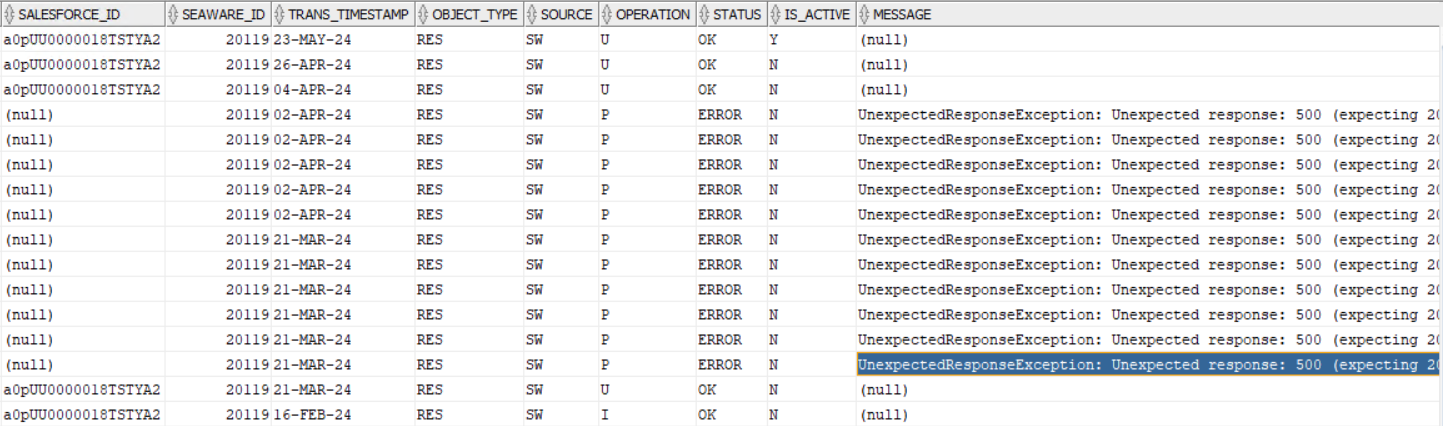
Analyze these fields in the log results to identify the exact point of failure during synchronization and troubleshoot accordingly.
Based on the query results, it appears that a reservation was initially synchronized successfully. However, there were subsequent issues caused by updates, which were eventually resolved. Currently, the reservation is in a synchronized state.
LOG files
The Seaware-Salesforce integration stores log files in the /log folder on your system. These files provide detailed information about the integration's activities and can be helpful for troubleshooting synchronization issues.
Log File Naming Conventions
Log file names follow this format:
<app-name>-<port>[.<date>].log
<app-name>: Name of the Seaware-Salesforce integration application.<port>: Port number used by the integration..<date>: Date suffix appended to the filename (may vary depending on configuration).
New log files are typically created each day to manage file size and facilitate searching based on timestamps.
Below is an example of /log filder:
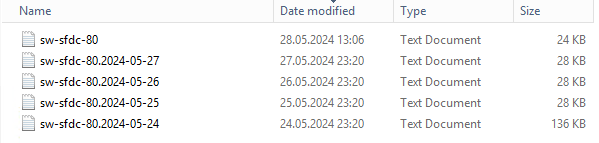
Log Rotation and Retention
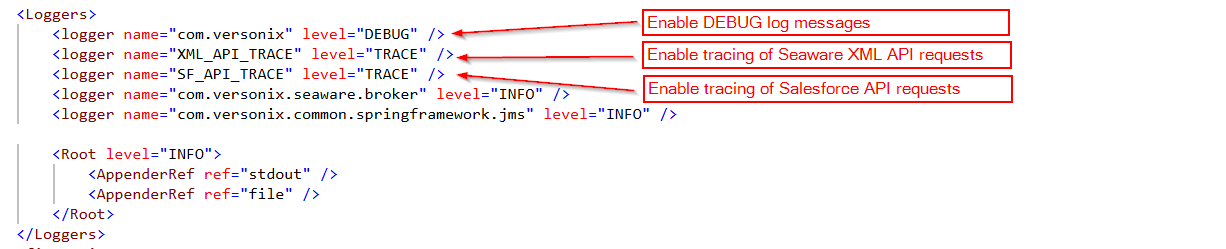
The number of log files retained is controlled by the config/log4j2.xml file. This file uses the Apache Log4j 2 package for logging functionalities.
Analyzing Log Content
- Primary Source: While the SFDC_TRANSACTIONS table provides valuable insights, you might need to examine the log files for more granular details in specific scenarios.
- Text Format: Log files are plain text files, allowing you to open them with any text editor or viewer.
- Log Levels: The integration typically logs messages at different severity levels:
- INFO: Informational messages about successful events or general system status.
- WARNING: Indications of potential issues that may not necessarily cause failures.
- ERROR: Messages indicating errors that could disrupt synchronization or functionality.
note
Enabling Debug Messages: For particularly complex troubleshooting, you might need to enable DEBUG messages in the config/log4j2.xml file.
Connectivity Issues
The Seaware-Salesforce integration relies on establishing secure connections to two critical systems:
- Seaware BizLogic Server: This server provides the core functionality for Seaware and interacts with the integration.
- Salesforce REST API Endpoint: This endpoint acts as the communication channel for data exchange between the integration and Salesforce.
If you encounter synchronization issues, and the log files contain messages mentioning errors like ConnectionTimeout, SocketException, or similar terms, it might indicate connectivity problems between these systems.
Troubleshooting Connectivity Issues
- Firewall Rules: Review firewall configurations on both the Seaware and Salesforce sides to ensure they allow necessary communication for the integration. You might need to adjust firewall rules to permit traffic between the systems.
- Network Connectivity: Verify that there are no network connectivity problems hindering communication between your Seaware environment and the Salesforce servers.